Academica is Wayne State's internal messaging platform for students, faculty, and staff. Users can post, comment, share formatted content, use mentions/hashtags, share files, create promotional messaging, and manage Posts across streams. This guide explains how to perform these functions in Academica.
Simple and advanced posts
Step 1
Go to a.wayne.edu and log in with your AccessID and password.
Step 2
Click New Post in the top-right corner of your stream feed.
Step 3
Choose one of the available options from the drop-down menu: Simple or Advanced.
- Simple post: Choose the stream you want your message posted to. By default, this is My Followers, which posts to your personal stream. If you subscribe to or have authorship access to other streams, they will also appear in this drop-down. You can select from the list or type the stream name directly.
- Advanced post: Advanced posts offer the option to Post on Behalf of a stream. The Post on Behalf of drop-down includes all streams for which you are a moderator.
Step 4
The Create New Post text edit box form will open. Type your message and complete the necessary fields.
Step 5
Click Post in the bottom-right corner of the form.
Basic formatting options
You can enhance your Academica posts and messages by using rich text formatting, images, videos, hyperlinks, and even mathematical notation. These tools help make your content more dynamic, accessible, and engaging. Academica supports basic text formatting through built-in buttons and Markdown syntax. When composing a message, use the toolbar at the top of the message field to:
- Bold, italicize, or underline text
- Create bulleted or numbered lists
- Insert hyperlinks or images
Use the Photo button in the formatting toolbar to upload or insert an image.
Embed a video in a post by copying and pasting the video URL directly into the message field. Academica will automatically generate a preview. Supported platforms include YouTube, Vimeo, and most other major video players.
Promotional posts
Academica allows divisions, departments, and campus groups to send promotional messages directly to targeted audiences through the message stream. These messages appear on the homepage stream of all selected users and may include subject lines, rich text formatting, images, and links.
Promotional posts offer the ability to:
- Choose a specific audience (e.g., all users, students, faculty, employees, and more)
- Post on behalf of a stream you moderate
- Use visually enhanced formatting to increase engagement
Follow the steps below to post a promotional message.
Step 1
Go to a.wayne.edu and log in with your AccessID and password.
Step 2
Click New Post at the top of your message stream. Choose Promotional from the drop-down.
Step 3
Use the drop-down menu to choose your audience(s). Choose as many groups as you want. Users that belong to more than one group will receive the message just once. Each recipient costs one Academicoin. If you do not have enough coins for your message, you will not be able to post.
(Optional) Use the Appear as From drop-down to select a stream you moderate, if you don't want the post to come from your personal account.
Compose your message.
Step 4
Click Post. Your coins will be deducted, and your message will appear in the selected users' streams.
Academicions
Select Academica users may post Promotional messages, which are based on a coin system called Academicoin. One recipient equals one Academicoin, the number of recipients you choose is how many coins you will need to send the message. For example, if you wanted to send a promotional post to the student audience, it would take 52,840 Academicoins because that is how many members are in that group.
Coins may be acquired by submitting an Academicoin Request. Follow the steps below to request coins.
Step 1
Go to a.wayne.edu and log in with your AccessID and password. Click the person icon in the top right-hand corner. Click Coins.
Step 2
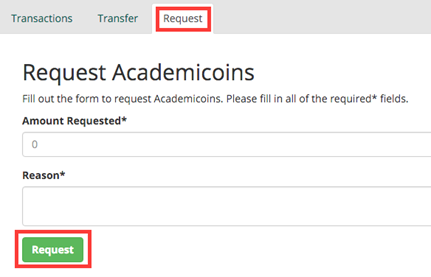
Click Request at the top. Fill out the form and click the green Request button.
Delete a post
You may delete any post you created, or post made to a stream that you are a moderator of. Posts can be deleted from a specific stream or deleted from all streams it was originally posted to. Deleting a post from one stream will not delete it from another stream.
Step 1
Find the post you wish to delete and click the three dots (...) in the upper right-hand corner of it. Click Delete From.

Step 3
Click All Streams or choose the specific stream you wish to delete the post from.

Replies and threads
In Academica, each stream is made up of a series of posts. Users can view these posts by visiting the streams direct URL, or by subscribing to the stream to see posts on their homepage.
Comments
Only users with permission to view a post may comment on it.
Step 1
To comment, click Comment at the bottom of the post.
Step 2
Type your reply and click Post Reply to submit it.
All comments are grouped with the original post to form a single message thread.

Threads
To view existing comments:
Click Comment or hover over the post to reveal the Expand Post tab in the lower-right corner. Click it to expand the thread. The button will change to Collapse Post if you want to hide the thread again.
Likes and dislikes
Users can react to both posts and comments. Click the Like or Dislike button in the bottom-left corner of a post or comment. The total number of likes or dislikes appears in parentheses next to each button.

FAQ
1. Only users with access to the stream can see and reply to comments.
Only users with access to the stream can see and reply to comments.
2. How do I track my Academicoins?
Go to Settings > Coins in Academica to view your balance, transaction history, or request more.
3. How do mentions and hashtags work?
Use @username to tag someone or hashtags #keyword to make content searchable.