Wayne State University has migrated its lecture capture system to the Echo360 cloud. This new platform allows instructors to capture teaching materials, speeches and other events using Echo360 recording technology. Recordings can feature audio, video and presentation visuals and may be published to Canvas for review by students.
Services
Classroom Capture: Request to schedule automated recordings for courses you’re teaching in a classroom that is equipped with Echo360 technology.
Universal Capture: Download and install software which allows you to record desktop presentations from your own personal computer at any time or place.
Students can access recordings shared by their instructors through Canvas or directly from the Echo360 platform using their Wayne State credentials. Universal Capture is available for both Windows and macOS. If Classroom Capture is scheduled and linked to a Canvas course, recordings will upload to Canvas automatically.
Echo360-enabled classrooms
A list of equipped rooms is available in Academica (login required).
Login
Faculty and students can log in to the Echo360 platform to download Universal Capture software and manage recordings (create, review, upload, edit, share, etc.).
Through Canvas (recommended)
Step 1
Go to canvas.wayne.edu, log in with your AccessID and password, and open the desired course.
Step 2
Click Echo360 Recordings in the course navigation menu.
Through Echo360
Step 1
Open a browser and navigate to echo360.org.
Step 2
Enter your Wayne State email address and click Submit.
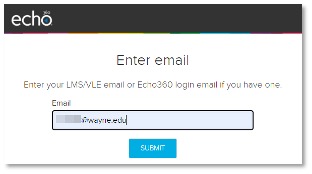
If you are already logged in to another Wayne State system in the same browser, you will not be asked to authenticate again. If you are taken to the Wayne State login page, enter your AccessID and password.
Access
All faculty at WSU can use Echo360 with their Canvas courses to provide high-quality video to their students. There are two options available, depending on your teaching style and assigned classroom:
Classroom Capture: If you are teaching in a classroom equipped with Echo360 recording technology, you can choose to automatically record your lectures and have them uploaded to Canvas.
Universal Capture: Previously known as Personal Capture. When choosing this option, you must download a program to your computer. Faculty can use Universal Capture software to record content on their personal computer or laptop. Recorded content can be published to Canvas for student viewing.
FAQs
How do I log in to Echo360 lecture capture?
How do I share existing Echo360 recordings to my course?
How do I embed Echo360 media into my Canvas course?
How can I view analytics for Echo360 media in my Canvas course?
How can I enable or disable Automatic Speech Recognition (ASR) for a course in Echo360?
How do I upload media to the Echo360 content server?
How to publish Cloud Recordings from my Zoom meetings to Echo360?
How do I enable or disable Echo360 course section features?
How do I disable class content downloads in Echo360?
How do I find the Echo360 Universal Capture: Personal download?
What is the Echo360 Library and how do I manage content?